
First Time Logging In - CareTech
Welcome to Your Hippo!
You have found yourself on this page for assistance with logging into the system for the first time.
At the moment, there are 2 different methods of logging in for the first time.
- Microsoft Single-Sign-On
- Email & Password
If you received a Your Hippo Welcome Email at your works email address (e.g. example@caretech-uk.com etc), then you're set up with Microsoft Single Sign-On (SSO).
If the Welcome Email was sent to your private email address, you need to manually set a password.
You can follow the steps outlined in this article to login, if you have any issues then please refer to the 'Help and Support' section in this article.
Ongoing Challenges Accessing the System
This could be caused due to an out of date 'Work Email' within the iTrent system.
You can update your work email address on Employee Self Service (ESS):
- Log into your ESS account - ESS - Login
- Update the 'work email' address to the email you use for work purposes.
Once ESS has been updated, this will update the iTrent data that gets uploaded into YourHippo within 2-hours.
If you have updated ESS and are still unable to login or not received your welcome email - please contact your Learning and Development team.
Please be aware, the YourHippo LMS is not supported by the web browsers: Samsung Internet and Internet Explorer.

If you are on a Samsung Device, we recommend copying the link at the bottom of the Welcome Email and pasting into a supported browser such as Google Chrome or Firefox.
Navigating This Page
Help and Support
If you encounter any issues with logging in, you will need to contact the relevant Learning & Development team for either Adults or Children:
- Adults' Services - landd.adults@caretech-uk.com
- Children's Services - landd.childrens@caretech-uk.com
You can contact the Your Hippo Support Team in two ways:
- Email at support@yourhippo.com
- Click the pink Help button in the bottom left corner of the login screen
If you email, please send the message directly from your normal email account.
Do not use email security or encryption tools (for example, Egress/KnowBe4). These tools stop the Support Team from being able to read your message properly, which delays them helping you.
1. Microsoft Single-Sign-On
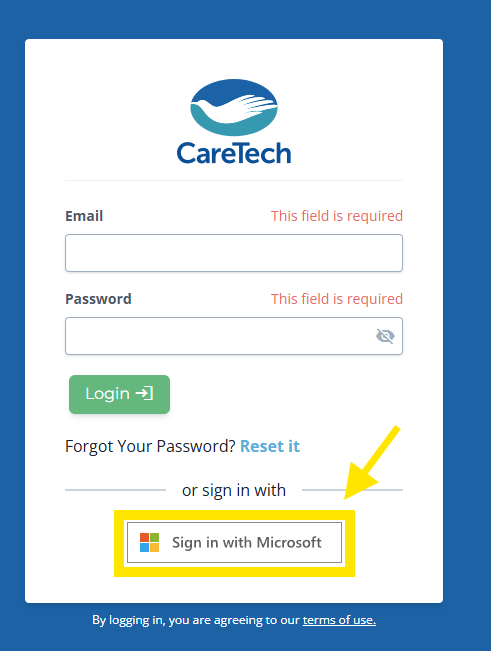
To begin, head over to "caretech.yourhippo.com" then click 'Sign in with Microsoft' as seen below:
This page will then appear, where you can sign in using your Microsoft Account.
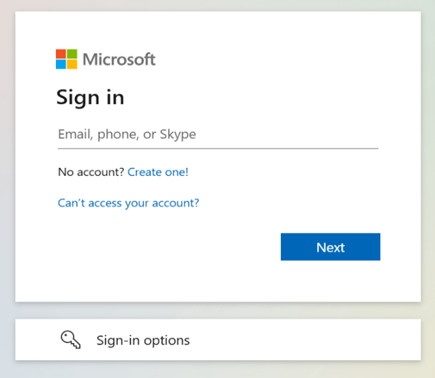
Be cautious when using shared devices for the Microsoft sign-in as you may have signed into another user's profile.
When logged in, you should be able to see your name in the top right-hand corner of the screen.
If you encounter challenges logging in via Microsoft, please attempt to do so on an incognito/private browser, see the links below for guidance on how to open incognito/private browser on:
2. Email & Password
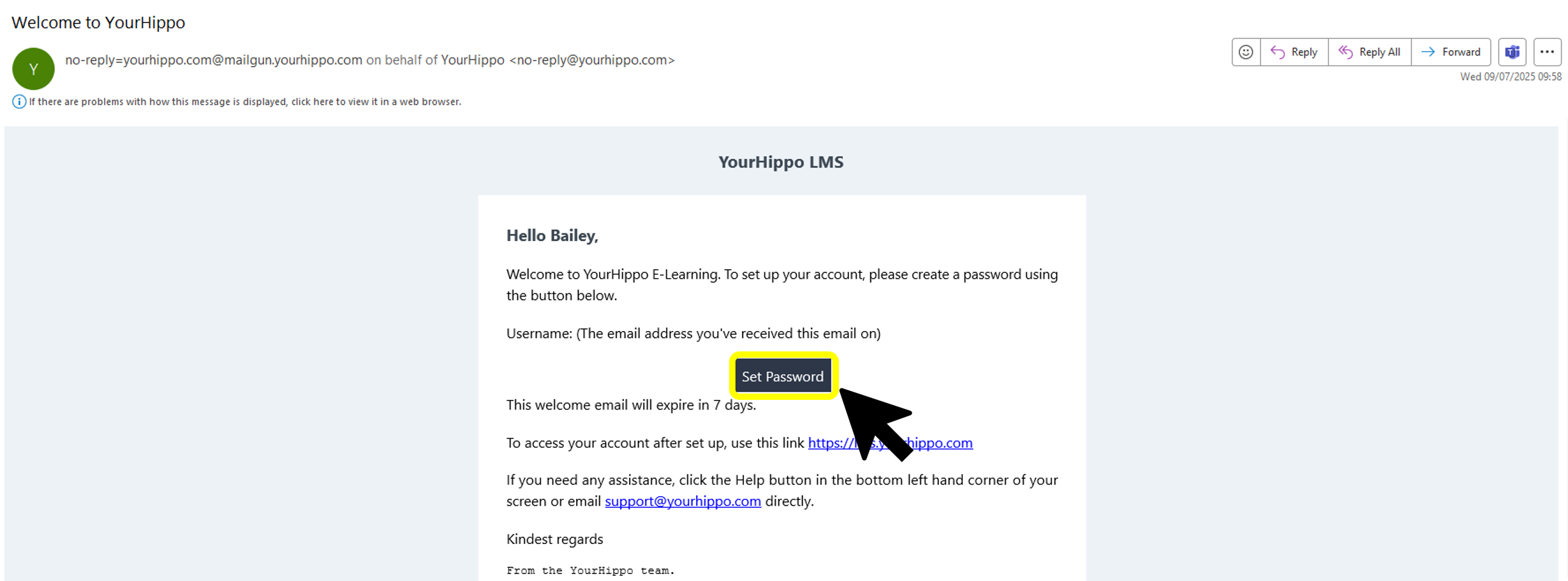
For your first time logging in, you should have been sent a Welcome Email.
If you have not received a Welcome Email, please contact support@yourhippo.com and ask for one to be sent to you.
Within this email you need to click the 'Set Password' button.
To log in after setting a password, you need to head to "caretech.yourhippo.com".
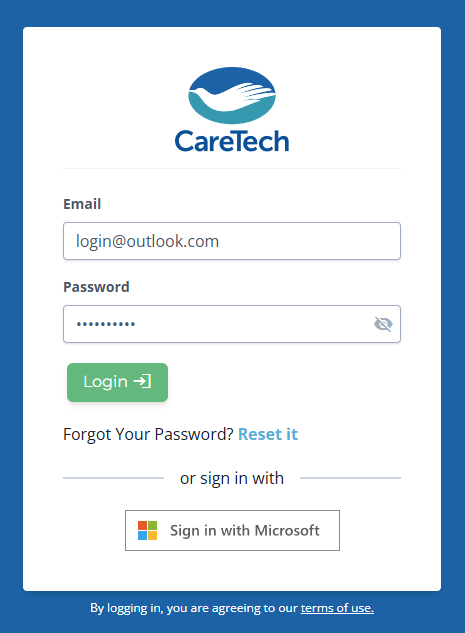
You will then be directed to the login page:
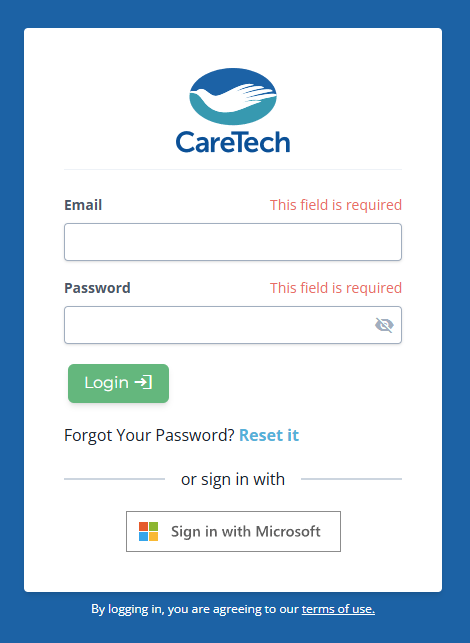
Enter your Email Address and the Password that you have set for yourself:
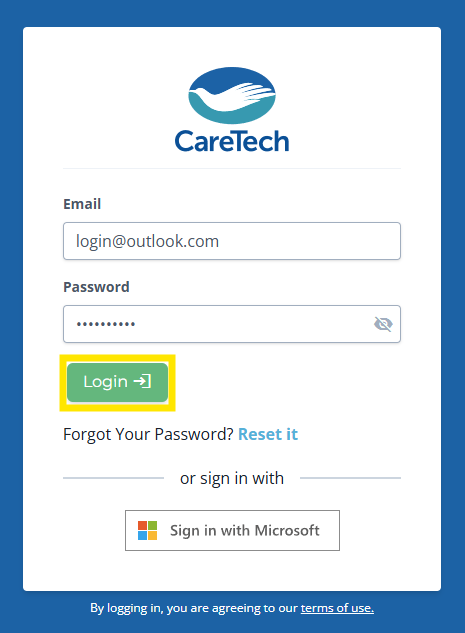
After you have entered your email address and password, press Login:
You will then be logged in and greeted with your events area.
You can learn more about your events area by viewing this Article.
Help and Support
If you encounter any issues with logging in, you will need to contact the relevant Learning & Development team for either Adults or Children:
- Adults' Services - landd.adults@caretech-uk.com
- Children's Services - landd.childrens@caretech-uk.com
Forgot Your Password or Token Expired?
You can use the following article: https://helpdesk.yourhippo.com/article/93-how-to-reset-your-password
CareTech Care Awards 2026

Click Here to Submit a Nomination
📘General FAQs
Last Updated: 21-05-2026
How do I request changes to data on Your Hippo?
Unlike Myrus, Your Hippo is fed by data stored in our internal HR system (iTrent). This allows the L&D team to ensure all staff recorded in the iTrent system match with those details on Your Hippo. As a result of this, it is important that we ensure any changes to staffing are recorded on iTrent, such as:
- Change of name and email address
- New starters
- Leavers
- Job role and workplace changes
- Absence including sick, maternity and compassionate leave.
New and updated data will transfer from iTrent to Your Hippo every time a change is made, ensuring all the correct learning is assigned on Your Hippo. For further information on how to make and request changes in iTrent, please contact your HR business partner.
If your query relates to any of the items listed below, please contact the L&D team:
- Disputes over attendance on training
- Disputes over refresher timescales for training
- Requests to add a new training title/venue
- Requests to change permission level
- Requests to add a new job role
- Adding staff to the platform
- Historical training data discrepancies
1. The joining link in my welcome email has expired. How do I access my Your Hippo account?
Joining links in Your Hippo welcome emails expire after 7 days.
If you have not yet logged in, Your Hippo will automatically resend a new welcome email every Monday until you successfully access your account.
If you still haven’t received a new link after Monday, please contact support:
2. Can I sign in using Microsoft Single Sign-On (SSO)?
Yes, if you access Your Hippo using a work email address (e.g., @caretech‑uk.com).
To use Microsoft SSO:
- Click “Sign in with Microsoft” at the bottom of your login page.
- You must be in the office or connected via VPN if working remotely.
- If you use a personal email, or you’re not connected to the corporate network, you must log in using your username and password.
📄 Full guidance here:
#1-Microsoft-Single-Sign-On-MeKGG
3. I have a Cambian email address and cannot log in using SSO.
Some users with Cambian email addresses are experiencing issues with SSO.
To avoid login failures, SSO has been temporarily disabled for Cambian users who have not yet logged in.
You can still access Your Hippo using username and password.
If you need a new welcome email sent, email:
4. What is the difference between a ‘Mandatory’ course and a ‘Service Specific’ course?
- Mandatory courses: Essential for your division.
- Required courses: Also mandatory, but based on your job role or service type, so they vary by role/site.
Both types contribute to compliance.
These are determined by the Senior Leadership Team and allocated by Learning & Development.
5. Why has my training compliance changed compared to Myrus?
Compliance may differ from Myrus for several reasons:
- Mandatory/Service Specific course requirements has changed as part of the Your Hippo implementation.
- Your Hippo pulls staff data directly from iTrent, which may include users who remain active because a leavers form was not submitted.
- Historical training data is still being validated and corrected during the migration process.
If something looks incorrect for you or your team, please email Learning & Development.
They will collect all issues and submit them as batch updates.
6. How do I change the email address linked to my account?
Your Hippo uses the email address stored in iTrent ESS.
To update it:
- Log into ESS - Login
- Update your Contact Information section
- Your change will be processed within 2-Hours
Your Hippo will update automatically once iTrent processes the change.
7. How do I contact the Your Hippo support team?
You can reach the support team in two ways:
📩 Email: support@yourhippo.com
💬 Click the pink “Help” button on the bottom-left of the login screen
Please send emails directly from your email account without encryption tools (e.g., Egress/KnowBe4), as these prevent Your Hippo Support from reading your message.
8. How do I know if a Course is Delivered via E-Learning or Face-To-face?
Some E-learning and face-to-face courses have the same or very similar titles.
To differentiate between the two on Your Hippo, please note that face-to-face courses will include ‘F2F’ at the end of the course title (for example, ‘Safeguarding Children F2F’).
Also, on your Events page, the course will state 'E-Learning' within the 'Delivery Type' column.
👔 Line Manager FAQs
1. How are new staff added to Your Hippo? What if they change roles?
Your Hippo is populated using iTrent data, so it’s essential that iTrent is kept accurate.
- For most divisions, adding a new starter to iTrent automatically creates a Your Hippo account and sends a welcome email.
- For Children’s Services, the L&D team manually creates accounts.
If a staff member changes role or location, please notify your HR representative so iTrent can be updated.
2. What do I do if staff who have left the organisation still appear in my dashboard?
This means the staff record has not been marked as a leaver in iTrent.
Managers must:
- Submit a leavers form
- Notify HR Admin of:
- leaving dates
- changes to reporting lines
- transfers between services/managers
Once iTrent is updated, Your Hippo will update automatically.
3. How were mandatory and required courses determined? Will these differ between regions?
Yes. Mandatory and required course lists vary by:
- division
- region
- service type
- job role
These requirements are set by the Senior Leadership Team and Managing Directors, and allocated by the Learning & Development team.
4. I cannot see training compliance for everyone I need to manage.
Your Hippo uses organisational structures from iTrent, which provides many benefits, but also creates challenges for some Support Service managers who need visibility across multiple teams.
This is being reviewed and improved across both systems.
In the meantime, if you need compliance information for a colleague, please contact your L&D representative.
Manager Training
Please see below for a detailed walkthrough of the entire Learning Management System (LMS) and the features available to you as a manager: