
First Time Logging In - SSO or Welcome Email
Welcome to Your Hippo!
You have found yourself on this page for assistance with logging into the system for the first time.
At the moment, there are 2 different methods of logging in for the first time.
- Microsoft Single-Sign-On
- Email & Password
If you received a Your Hippo Welcome Email at your LC email address, you're set up with Microsoft Single Sign-On (SSO).
If the Welcome Email was sent to your private email address, you need to manually set a password.
You can follow the steps outlined in this article to login, if you have any issues then please refer to the 'Help and Support' section in this article.
Please be aware, the YourHippo LMS is not supported by the web browsers: Samsung Internet and Internet Explorer.

Help and Support
If you encounter any issues with logging in, you will need to contact the Leonard Cheshire IT Service Desk.
- IT Support Portal - Click Here to access the support portal
- Call the team on 0333 014 3588
- Email the team on ITHelp@leonardcheshire.org
1. Microsoft Single-Sign-On
To begin, head over "lms.yourhippo.com" then click 'Sign in with Microsoft' as seen below:

This page will then appear, where you can sign in using your Microsoft Account.
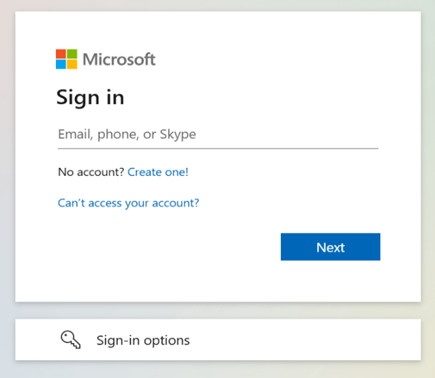
If you have signed into Office 365 in the past 30 days, it will automatically sign you in, without following the previous steps, as you are on a verified device
Be cautious when using shared devices for the Microsoft sign-in as you may have signed into another user's profile.
When logged in, you should be able to see your name in the top right-hand corner of the screen.
If you encounter any issues with Microsoft SSO, please email ithelp@leonardcheshire.org
2. Email & Password
For your first time logging in, you should have been sent a Welcome Email.
If you have not received a Welcome Email, please contact support and ask for one to be sent to you.
Within this email you need to click the 'Set Password' button.
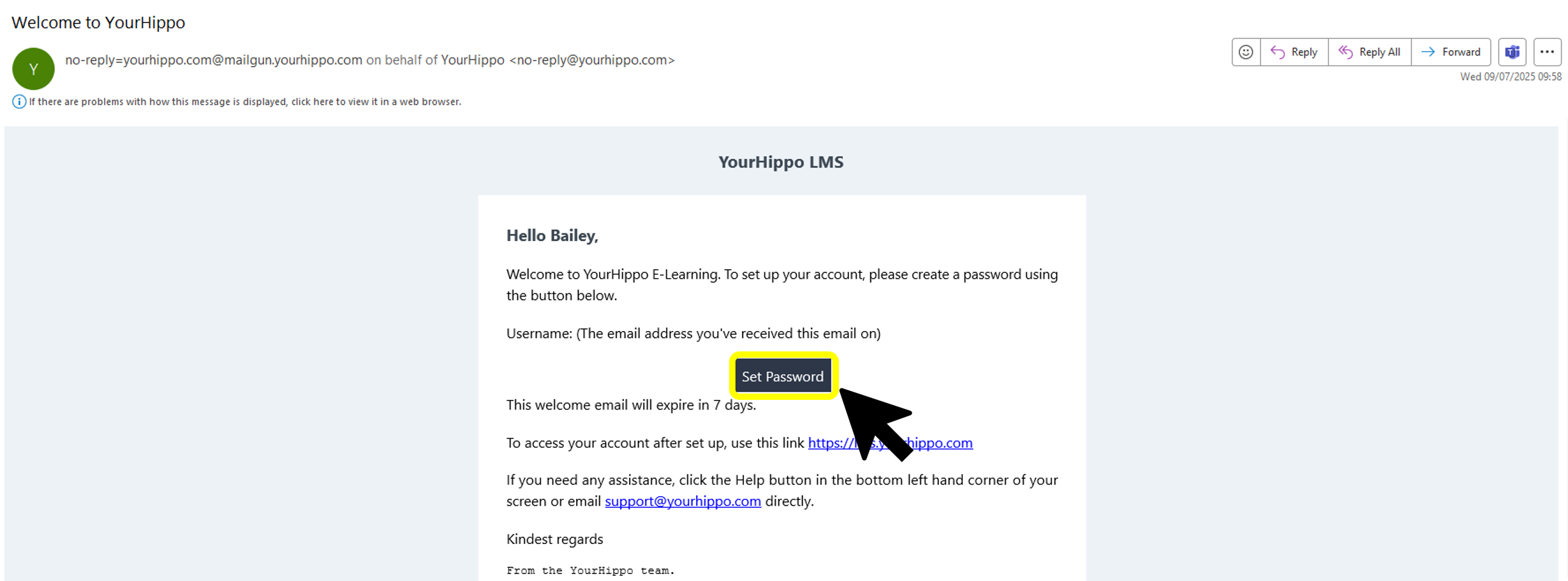
To log in after setting a password, you need to head to "lms.yourhippo.com".
You will then be directed to the login page:

Enter your Email Address and the Password that you have set for yourself:

After you have entered your email address and password, press Login:

You will then be logged in and greeted with your events area
You can learn more about your events area by viewing this Article
Help and Support
If you encounter any issues with logging in, you will need to contact the Leonard Cheshire IT Service Desk.
- IT Support Portal - Click Here to access the support portal
- Call the team on 0333 014 3588
- Email the team on ITHelp@leonardcheshire.org